

After creating an account and getting free $100 credits through this post: https://vultrcoupon.webflow.io/post/how-to-register-to-buy-vps-vultr-with-100-free-credit
you can now create a VPS to use at Vultr. Please select the PRODUCTS button and then select DEPLOY INSTANCE in the left MENU and proceed to select VPS with the following options:
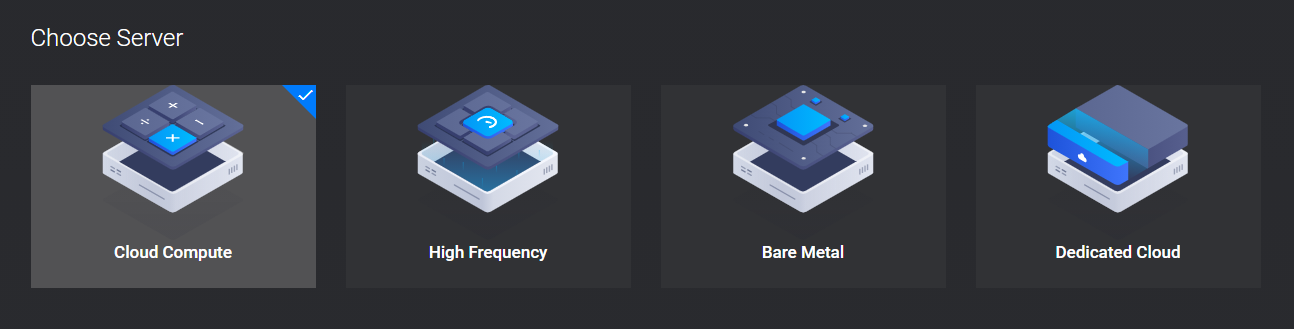
Step 1: Choose the type of server, we choose Cloud Compute
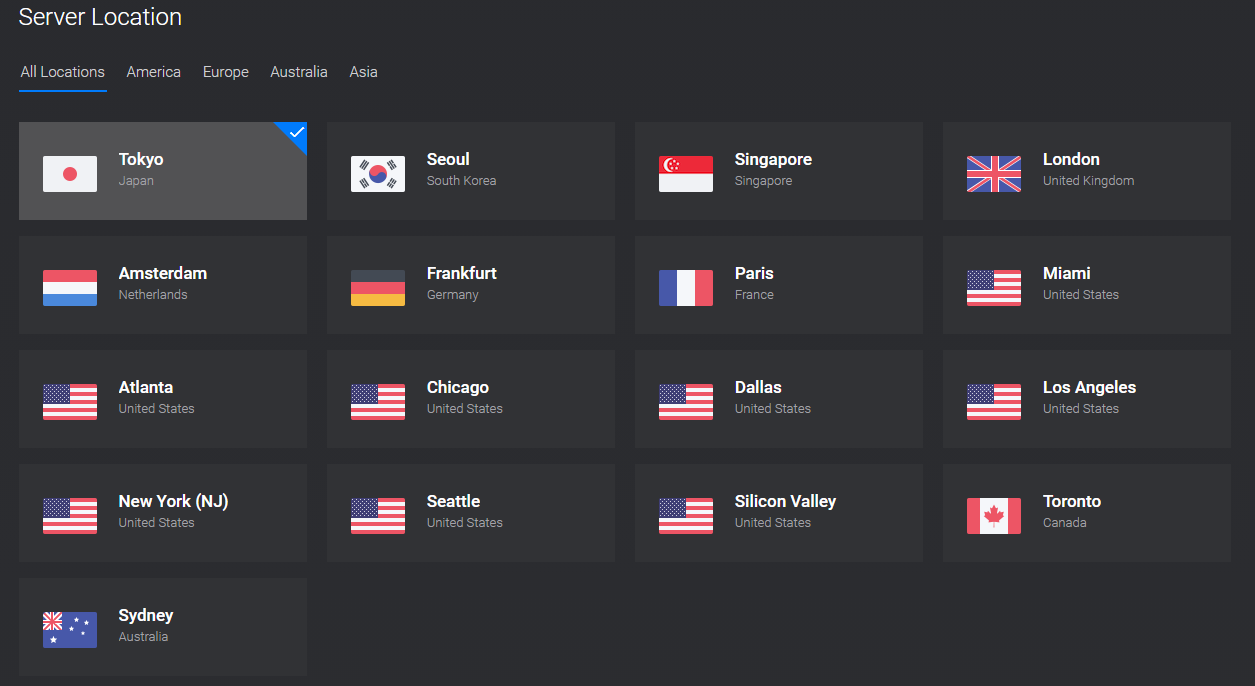
Step 2: Select the server location you need to register, you can choose the US, Japan, Europe, Singapore...
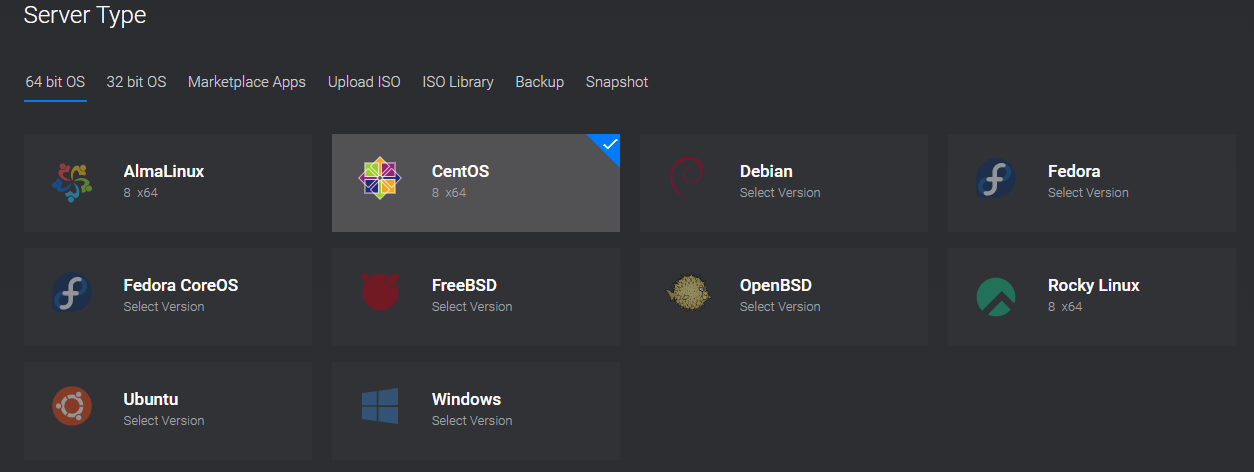
Step 3: Choose the operating system: You can choose Ubuntu or CentOS... depending on your needs
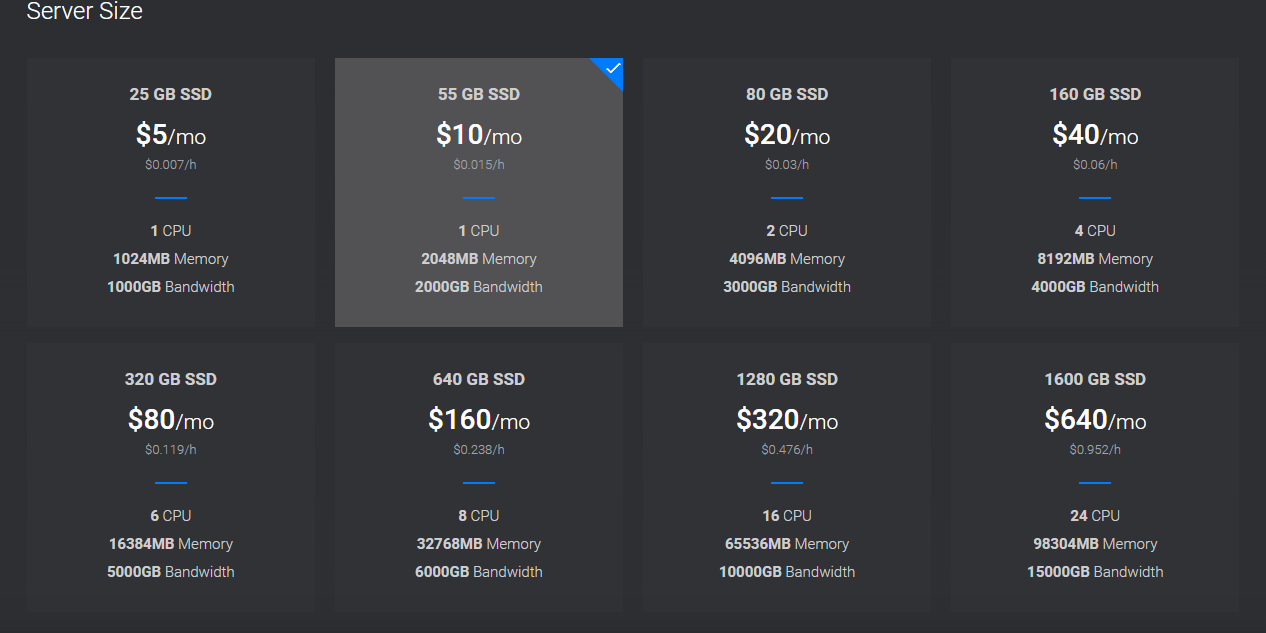
Step 4: Select Server Size and initialize VPS.
Finally, after you have checked the information, you just need to click the DEPLOY NOW button.
You can easily reinstall the operating system in just a few minutes.
Very easy isn't it? Wish you success!
